
Alert Channels
Alert Channels define where Axemere sends notifications when notable events occur: policy denials, approval requests, budget thresholds, or gateway health changes. Configure them once; reference them in policies or let the system use them for automatic alerts.
Required: a Growth Pack, Dedicated, or Core Platform package.
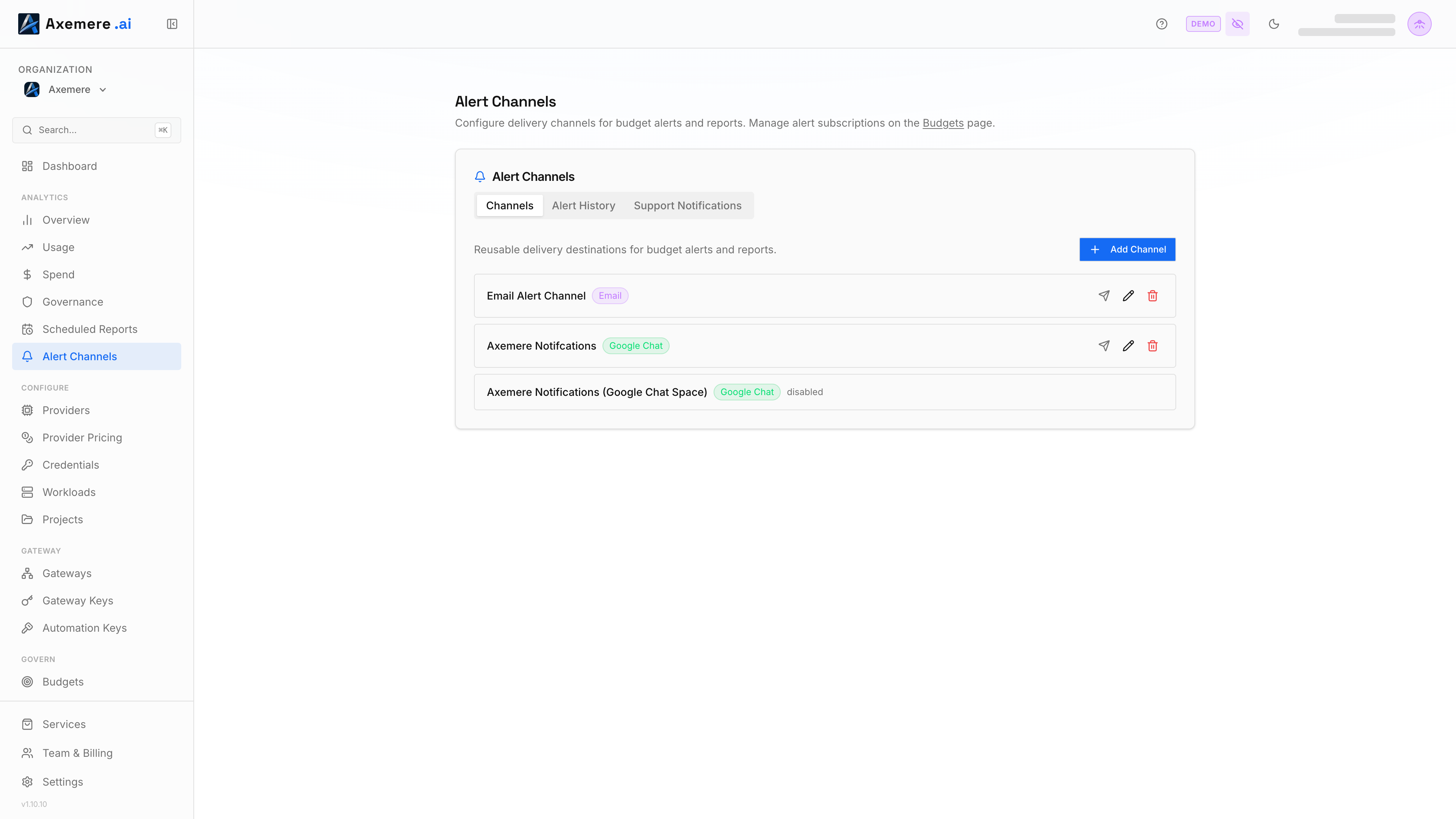
The page has three tabs: Channels (configure delivery destinations, covered below), Alert History, and Support Notifications.
Supported channel types
| Channel | What you need |
|---|---|
| Slack | An incoming webhook URL from your Slack workspace |
| Microsoft Teams | An incoming webhook URL from a Teams channel |
| Google Chat | A webhook URL from a Google Chat space |
| Discord | A webhook URL from a Discord channel |
| One or more email addresses |
Adding a channel
- Go to console.axemere.ai/analytics/alerts, Channels tab
- Click Add Channel
- Select the channel type
- Enter the webhook URL (or email addresses for Email channels)
- Give the channel a name (e.g.
ops-slack,security-team-email) - Click Add & Test to save and immediately send a test notification, or Add Channel to just save without testing
Channel configuration
Slack and Microsoft Teams
Paste the incoming webhook URL provided by Slack or Teams. Axemere sends a formatted card with the alert type, affected workload, and a link to the relevant console page.
For Slack: generate a webhook at [Your workspace] → Settings → Apps → Incoming Webhooks.
For Teams: use a Power Automate Workflows webhook, not the deprecated Office 365 Connector URL — the console labels this field "Workflow Webhook URL" specifically because of that distinction. Generate one via Channel → Workflows → "Post to a channel when a webhook request is received".
Google Chat
Paste the webhook URL from your Google Chat space (Space settings → Apps & integrations → Manage webhooks). Axemere sends a formatted card with the alert details.
Discord
Paste the Discord webhook URL (Channel Settings → Integrations → Webhooks → New Webhook → Copy Webhook URL). Axemere sends a plain-text formatted message.
Enter one or more email addresses (comma-separated). Axemere sends HTML-formatted alert
emails from noreply@axemere.com.
When alerts are sent
Axemere sends notifications to configured channels for:
| Event | Trigger |
|---|---|
| Approval request | A policy require_approval rule fires; reviewers are notified |
| Budget threshold | Spend approaches or crosses a configured cap |
| Gateway offline | A connected node stops sending heartbeats |
| Credential error | A request fails due to an invalid or expired provider API key |
| High risk score | A request's composite risk score exceeds 0.7 |
| Quarantine | A workload is quarantined due to anomalous behavior |
System-level infrastructure alerts (Cloud SQL, load balancer) are delivered separately to operations team channels and are not configurable from the console.
Referencing channels in policies
Alert channels can be referenced in require_approval policy rules to notify specific
channels when an approval is needed:
rules:
  - id: gate-high-cost
    conditions:
      - field: action.params.model
        op: in
        value: ["gpt-4o", "claude-3-5-sonnet-20241022"]
    effect: require_approval
    approval:
      reviewers: ["admin@yourcompany.com"]
      alert_channel: ops-slack   # channel name from the console
      expiry_minutes: 60
When this rule fires, Axemere sends an approval request notification to the ops-slack
channel in addition to emailing the listed reviewers.
Managing channels
- Test: Click the send icon next to any channel to re-send a test notification
- Edit: Click the pencil icon to update a channel. The webhook URL field is never shown or prefilled; Axemere doesn't return it after creation, so retain your own copy if you need it. Leave the field blank to keep the current webhook URL, or enter a new one to replace it. The email list is not a secret and does prefill for editing.
- Delete: despite the label, this is a permanent disable, not a removal — the channel stays listed (marked "disabled"), is unsubscribed from any budget alerts, reports, or support notifications currently using it, and there is currently no way to re-enable it. Create a new channel if you need the same destination back.
Alert History
The Alert History tab lists recent alert delivery events for your organization: level (warning/critical), scope (org, project, workload, or provider), the channel it was sent to, the utilization percentage that triggered it, whether delivery succeeded (hover the warning icon on a failed row for the error), and when it fired.
Support Notifications
The Support Notifications tab lets you subscribe specific channels to be notified when Axemere support reaches out about an incident affecting your organization — separate from the budget/policy alerts configured above. Add a channel from the list of your enabled channels not already subscribed; remove one to unsubscribe it (you can re-subscribe at any time).
Next steps
- Approval Workflows guide — policy-based approval flows
- Risk Scoring guide — risk score thresholds
- Telemetry and Observability guide — SIEM event export
- Export Destinations guide — webhook and syslog configuration