
Gateway Keys
For: Platform operators and developers creating and managing gateway authentication keys.
Gateway keys authenticate your applications to the Axemere gateway. Every request to the gateway must carry an Axemere gateway key. This is separate from your AI provider credentials: the provider credentials are stored in Credentials and are managed by the gateway on your behalf.
Navigation: console.axemere.ai/keys
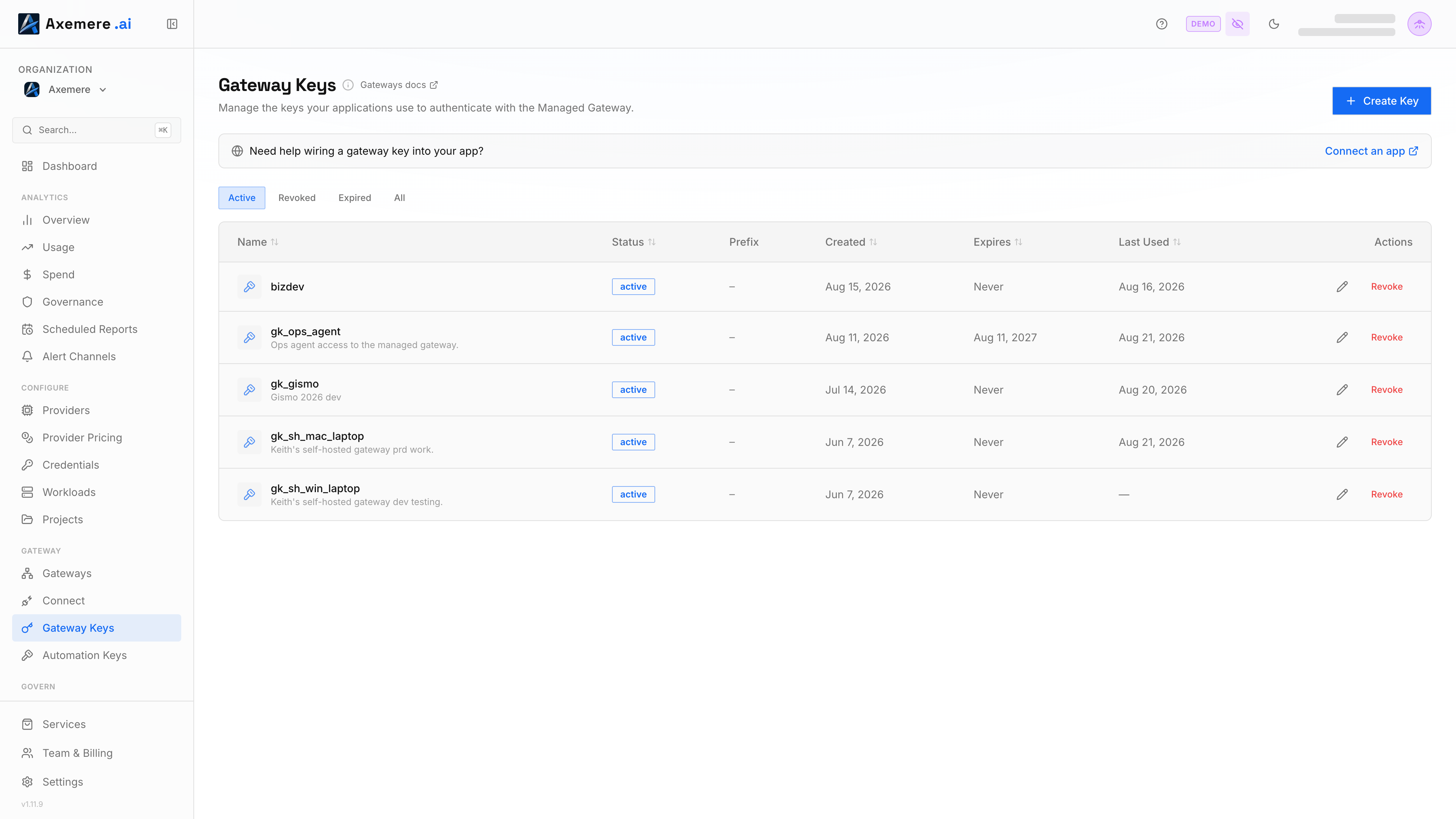
Table of Contents
Key Format
Axemere gateway keys have the format:
mvgc_k_<random-value>
The key value is shown once at creation time. It cannot be retrieved again; if lost, revoke the key and create a new one.
Creating a Key
- Open Gateway Keys in the sidebar.
- Click New Gateway Key.
- Enter a descriptive name (e.g.,
production-app,dev-testing). - Click Create. The full key value is displayed.
- Copy the key immediately and store it securely (e.g., in a secrets manager).
The Gateway Keys page shows each key's name, creation date, and last-used date. The key value itself is never displayed again after the creation dialog closes.
Using a Key
The gateway URL for managed deployments is shown on the Gateway Keys page. Point your SDK at the gateway instead of the AI provider directly.
The URL path pattern includes your key and workload:
/proxy/<provider>/k/<your-axemere-key>/w/<workload-id>
Anthropic SDK
export ANTHROPIC_BASE_URL="https://us.gw.axemere.ai/proxy/anthropic/k/<your-axemere-key>/w/<workload-id>"
export ANTHROPIC_API_KEY="placeholder"  # Axemere handles provider auth
import anthropic
client = anthropic.Anthropic()  # picks up ANTHROPIC_BASE_URL automatically
OpenAI SDK
export OPENAI_BASE_URL="https://us.gw.axemere.ai/proxy/openai/k/<your-axemere-key>/w/<workload-id>/v1"
export OPENAI_API_KEY="placeholder"
from openai import OpenAI
client = OpenAI()  # picks up OPENAI_BASE_URL automatically
Cohere SDK
export CO_API_URL="https://us.gw.axemere.ai/proxy/cohere/k/<your-axemere-key>/w/<workload-id>"
export CO_API_KEY="placeholder"
Gemini SDK
Gemini exposes two upstream surfaces with different paths and auth conventions. Match the one your client actually calls; mixing them produces a provider-side 400/401 that doesn't say "wrong endpoint."
Native (generateContent) is used by Google's own Gemini SDKs, authenticating via x-goog-api-key:
export GEMINI_BASE_URL="https://us.gw.axemere.ai/proxy/gemini/k/<your-axemere-key>/w/<workload-id>"
export GEMINI_API_KEY="placeholder"
This resolves upstream paths like /v1beta/models/gemini-2.0-flash:generateContent.
OpenAI-compatible surface is used when pointing an OpenAI SDK at Gemini, authenticating via Authorization: Bearer (Gemini's OpenAI-compat surface does not accept x-goog-api-key):
export OPENAI_BASE_URL="https://us.gw.axemere.ai/proxy/gemini/k/<your-axemere-key>/w/<workload-id>/v1beta/openai"
export OPENAI_API_KEY="placeholder"
from openai import OpenAI
client = OpenAI()  # base_url points at Gemini's OpenAI-compat surface via the gateway
Perplexity
Perplexity's OpenAI-compatible surface is /chat/completions, with no /v1 prefix, unlike OpenAI itself and most other openai_compat providers the gateway supports (DeepSeek, Mistral, etc.). Point the base URL at the proxy path with no trailing /v1:
export OPENAI_BASE_URL="https://us.gw.axemere.ai/proxy/perplexity/k/<your-axemere-key>/w/<workload-id>"
export OPENAI_API_KEY="placeholder"
from openai import OpenAI
client = OpenAI()  # will call {OPENAI_BASE_URL}/chat/completions
Workload ID: Replace
<workload-id>with an ID from your Workloads configuration. Workloads carry the policy context for each request.
Self-hosted gateways: Replace
us.gw.axemere.aiwith your own gateway's hostname.
Providers with non-standard paths
The four SDKs above are shown as examples, and the /proxy/{provider_id}/k/<key>/w/<workload-id>/... prefix works for any of the gateway's built-in providers or custom connectors you've registered. However, the path after the prefix is whatever that provider's own API expects, forwarded verbatim. The gateway does no path translation. Don't assume every provider follows OpenAI's /v1/chat/completions convention; check the provider's own API docs for its exact path (see the Gemini and Perplexity callouts above for two providers that don't). If a request fails with a provider-side 400/401 rather than a gateway error, a path or auth-header mismatch is the first thing to check: see Direct/proxy-mode request returns a provider-side 400/401.
Ways to present the key
Axemere accepts the gateway key three ways:
| Method | Example | When to use |
|---|---|---|
Authorization: Bearer header | Authorization: Bearer <your-axemere-key> | Default. Use this unless you also need Authorization free for your own upstream provider credentials (see below) |
X-Axemere-API-Key header | X-Axemere-API-Key: <your-axemere-key> | Equivalent to the Authorization header form; use when Authorization is already occupied client-side |
URL path (/k/<key>/...) | /proxy/<provider>/k/<your-axemere-key>/w/<workload-id> | Use only when you also need Authorization free to carry your own upstream OAuth token unmodified (see the oauth credential mode), not the primary or preferred method |
Access-log exposure with the URL path form: embedding the key in the URL means it appears in the path of every proxied request. Axemere's own access logs already redact this path segment before writing; no action needed on your side. But if you run your own reverse proxy, load balancer, or ingress in front of (or alongside) the gateway, its access logs are outside Axemere's control and may capture the full URI, key included, unless you configure it otherwise. See Gateway Key Exposure in Reverse Proxy and Access Logs for hardening guidance, or just use the
X-Axemere-API-Keyheader form to sidestep the concern entirely.
Viewing Keys
The Gateway Keys table shows:
| Column | Description |
|---|---|
| Name | The label you gave the key at creation |
| Created | Date the key was created |
| Last Used | Date of the most recent request authenticated with this key |
Keys are listed in creation order. There is no limit on the number of keys for Growth Pack or Dedicated plans.
Revoking a Key
- Expand the key row using the accordion control.
- Click Revoke.
- Confirm the revocation in the confirmation dialog.
Revocation is immediate. Any in-flight requests using the key may receive an authentication error. There is no way to restore a revoked key.
Key Security
- Store keys in environment variables or a secrets manager; never commit them to source code.
- Create separate keys for each environment (development, staging, production).
- Rotate keys periodically or immediately if you suspect a key has been compromised.
- Use the Last Used date to identify and revoke stale keys.
Related: Workloads | Credentials | Console Setup