
Budgets
For: Finance teams and platform operators configuring and monitoring spend limits with alerting and enforcement.
Operations Overview | Budgets | Records | Policies | Analytics → Spend
The Budgets page is where you create and manage spend limits (per organization, project, provider, or workload) and choose how each limit acts: alert a channel as spend approaches it, deny requests once it's reached, or both. This replaces the earlier separate Budget Alerts and Budget Caps pages, which were merged into a single page.
Navigation: console.axemere.ai/budgets Required: Core Platform package. Creating, editing, and deleting budgets requires Admin or Owner; all roles can view.
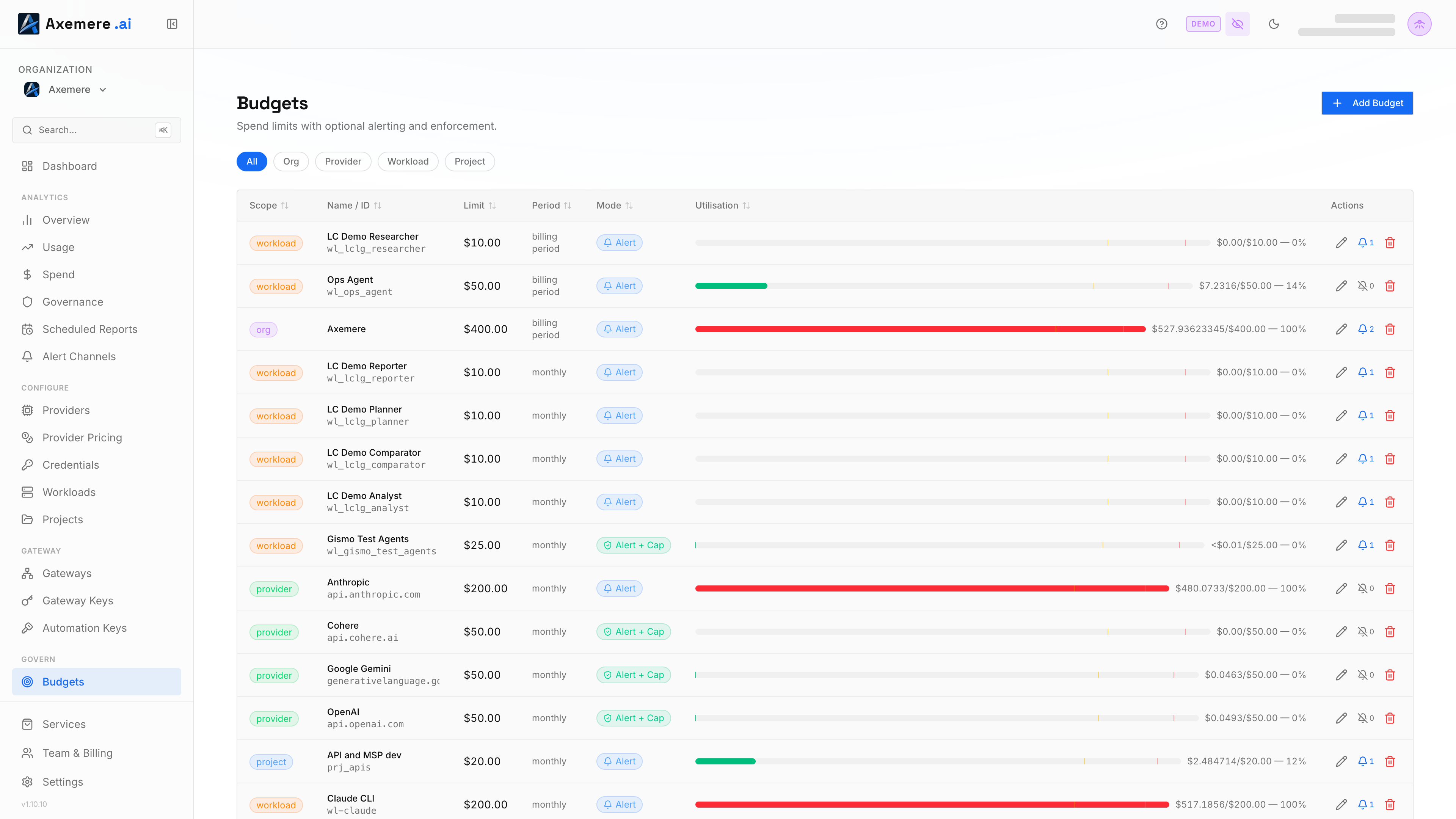
Table of Contents
- Filtering by Scope
- Reading the Budgets Table
- Adding a Budget
- Alerting
- Enforcement (Cap)
- Editing and Deleting a Budget
Filtering by Scope
Filter chips above the table — All, Org, Provider, Workload, Project — narrow the table to one or more scopes. Selecting no chip (or clicking All) shows every budget together. Selecting one or more scope chips shows a section per selected scope; project, workload, and provider sections also list any project/workload/provider that has no budget configured yet, with a Set budget shortcut to create one directly for that item.
Reading the Budgets Table
| Column | Description |
|---|---|
| Scope | org, project, provider, or workload, shown as a color-coded badge |
| Name / ID | The organization, project, provider hostname, or workload the budget applies to |
| Limit | The configured spend limit in USD |
| Period | Daily, Weekly, Monthly, or Billing period (tracks your subscription renewal date instead of the calendar month) |
| Mode | Draft, Alert, Cap, or Alert + Cap — which enforcement toggles are on, see Alerting and Enforcement (Cap) |
| Utilisation | A progress bar showing current spend against the limit, colored green under the warning threshold, yellow at or above it, and red at or above the critical threshold |
| Actions | Edit, alert-channel count (click to manage), delete |
All columns except Actions are sortable — click a column header to sort by it, click again to reverse direction.
Adding a Budget
- Click Add Budget.
- Choose a Scope: Organisation, Project, Provider, or Workload.
- For Project or Workload scope, select the specific project or workload. For Provider scope, pick a known provider or enter a custom hostname.
- Choose a Period: Daily, Weekly, Monthly, or Billing period.
- Enter the Limit in USD.
- Configure Alerting and/or Enforcement below.
- Click Create Budget.
A budget with neither Alert nor Cap turned on saves as Draft — it's configured but not yet acting on anything.
Alerting
The Alert toggle notifies configured channels as spend approaches the limit:
| Threshold | Default | Behavior |
|---|---|---|
| Warning at (%) | 80% | Crossing this triggers a warning-level alert |
| Critical at (%) | 95% | Crossing this triggers a critical-level alert (and enforcement, if Cap is also on) |
Warning % must be less than Critical %. When Alert is on, attach one or more channels — Slack, Teams, Google Chat, Discord, or Email — configured on the Alert Channels page. A budget with no channels attached still shows as Alert mode but has nowhere to send notifications.
Enforcement (Cap)
The Cap toggle denies requests once spend reaches the critical threshold — the gateway blocks further requests in that scope until the period resets. Cap enforcement is available across all scopes (org, project, provider, workload) and all periods.
Cap can be combined with Alert (Alert + Cap mode) or used alone (Cap mode, which still tracks the critical threshold internally but sends no notification).
Editing and Deleting a Budget
- Edit: Click the pencil icon to reopen the same drawer, pre-filled, for the budget's limit, period, thresholds, and channels.
- Alert channels: The bell icon shows how many channels are attached — click it to open the drawer directly on the channels section.
- Delete: Click the trash icon and confirm. This also removes any alert subscriptions tied to that budget.
Related: Policies | Records | Analytics → Spend | Alert Channels | Scheduled Reports