
Analytics — Spend
For: Platform operators, finance teams, and engineering managers tracking AI cost by dimension.
Operations Overview | Analytics Overview | Analytics → Spend | Analytics → Governance | Govern → Budgets | Scheduled Reports
The Spend page breaks down AI gateway costs by configurable dimensions (provider, workload, model, credential, project, account, customer, gateway type, gateway node, and custom labels) for any selected time period.
Navigation: console.axemere.ai/analytics/spend
Table of Contents
- Spend Breakdown Table
- Breakdown Dimensions
- Registered vs. Ad-Hoc Dimensions
- How Attribution Gets on Requests
- Downloading Data
- Period Selection
Spend Breakdown Table
The breakdown table shows one row per dimension value. Columns:
| Column | Description |
|---|---|
| Dimension | The value for the selected dimension (e.g., a workload ID, project ID) |
| Requests | Number of requests attributed to this dimension value |
| Cost (USD) | Total computed cost for this dimension value |
| Tokens In | Input tokens consumed |
| Tokens Out | Output tokens generated |
| Denied | Number of denied requests (not forwarded to provider) |
The Cost column includes a proportional bar chart within each cell: the row with the highest cost shows a full bar; other rows are scaled relative to it. This makes it easy to spot the largest contributors at a glance.
A Totals footer row sums all columns when more than one row is present.
Breakdown Dimensions
Select a dimension from the dropdown above the table. Every dimension is available on all plans, though some need Advanced Analytics to populate:
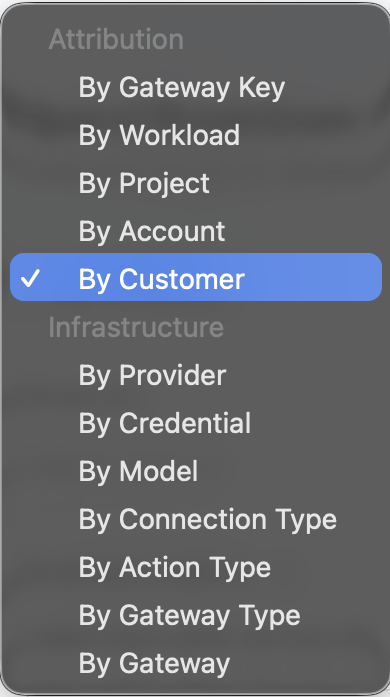
Attribution data (Project, Account, Customer) requires Advanced Analytics to populate meaningfully: the dropdown option shows but data will be empty without that package. See Services to activate. For how to set account and customer identifiers on requests, see Identity & Attribution.
The four dimensions below are shown with a screenshot; the rest are selected the same way from the same dropdown: the table and row-expand behavior are identical regardless of dimension, so no separate screenshot per remaining option.
By Workload
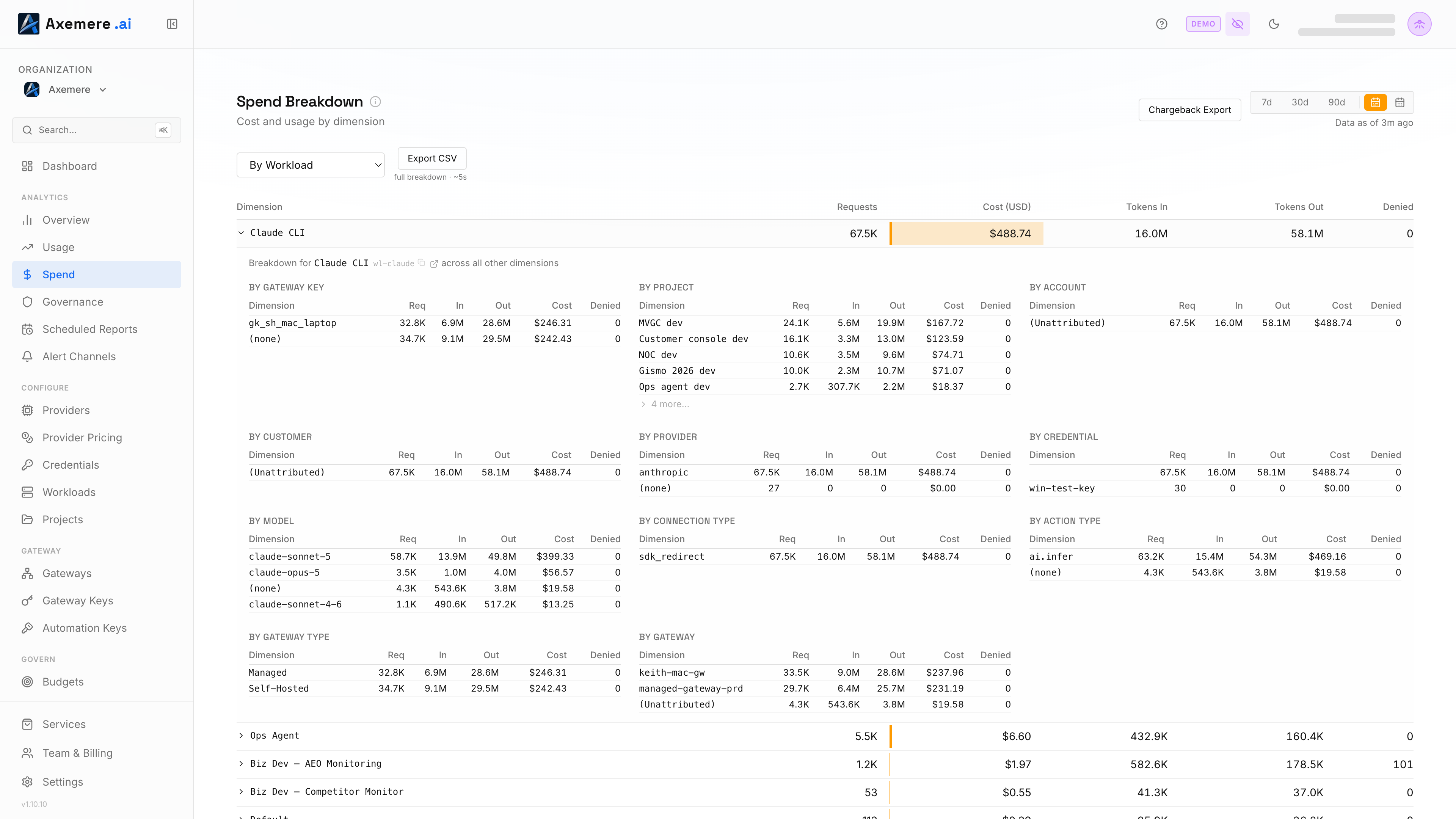
Groups rows by Workload ID. Click a row to expand its full breakdown across every other dimension.
By Model
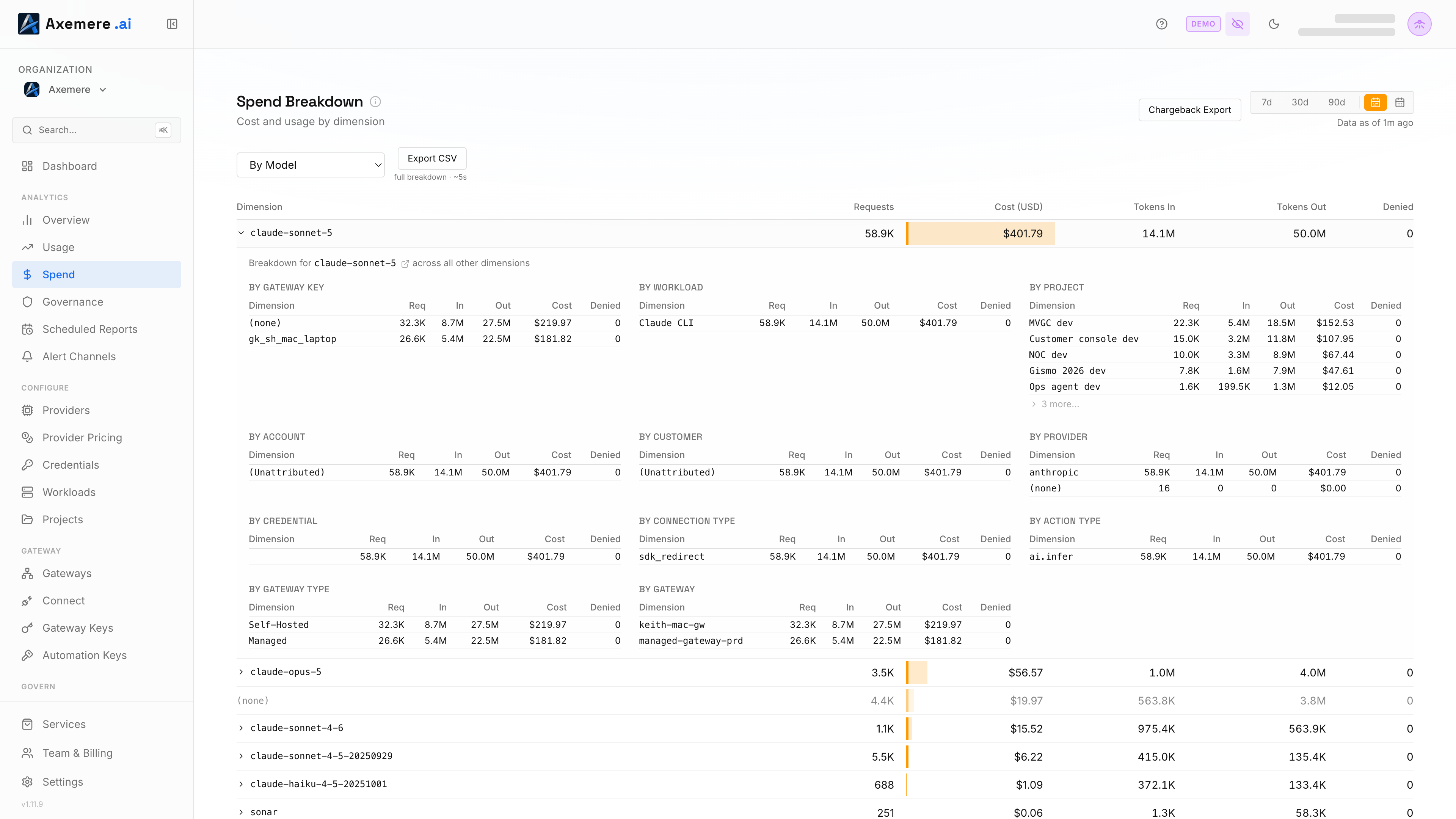
Groups rows by model name (e.g., gpt-4o, claude-3-5-sonnet). Click a row to expand its full breakdown across every other dimension.
By Provider
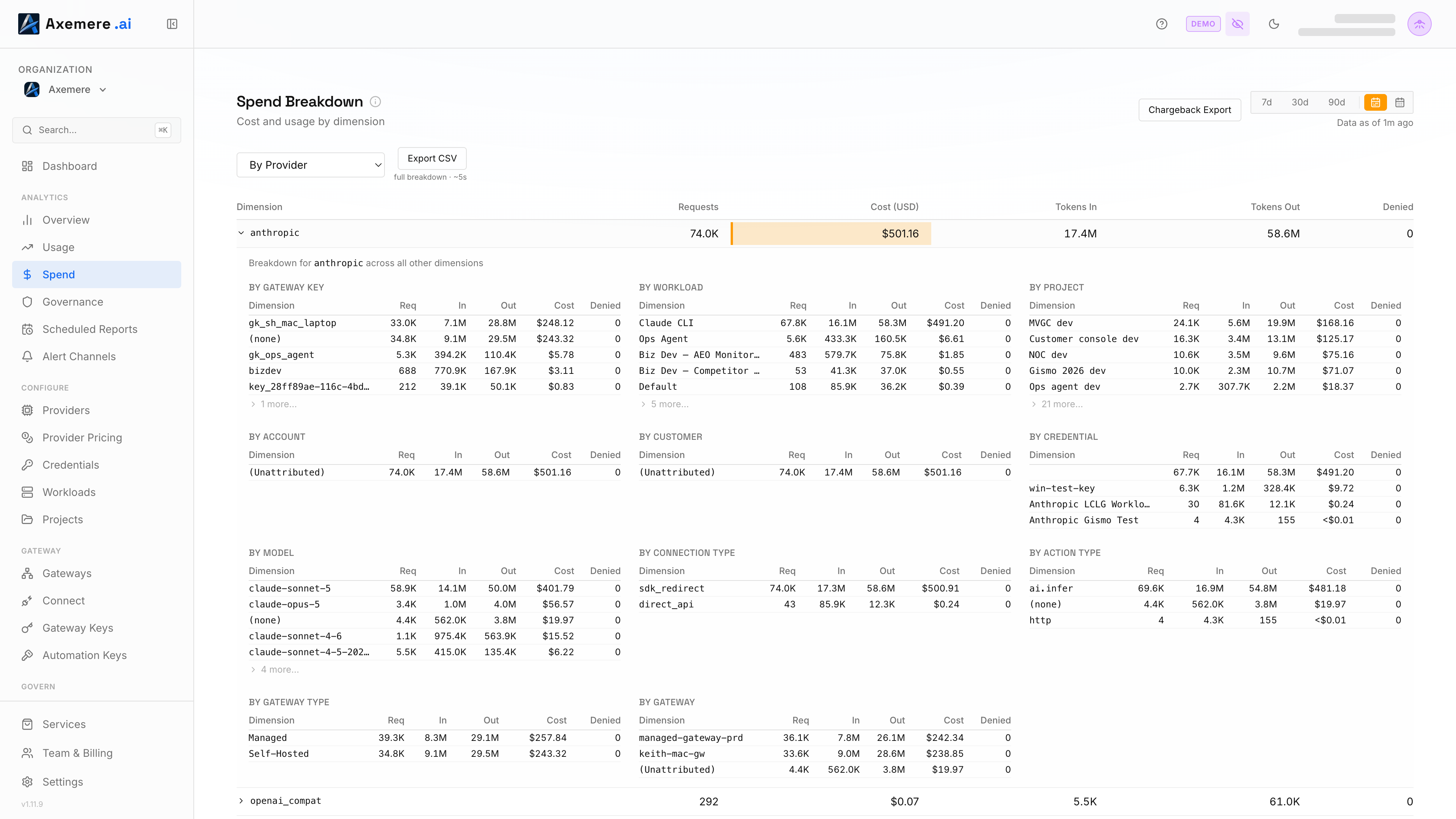
Groups rows by real provider identity (e.g., OpenAI, Anthropic, NVIDIA NIM): every provider is broken out individually, even when multiple providers share the same underlying connector implementation. Click a row to expand its full breakdown across every other dimension.
By Project
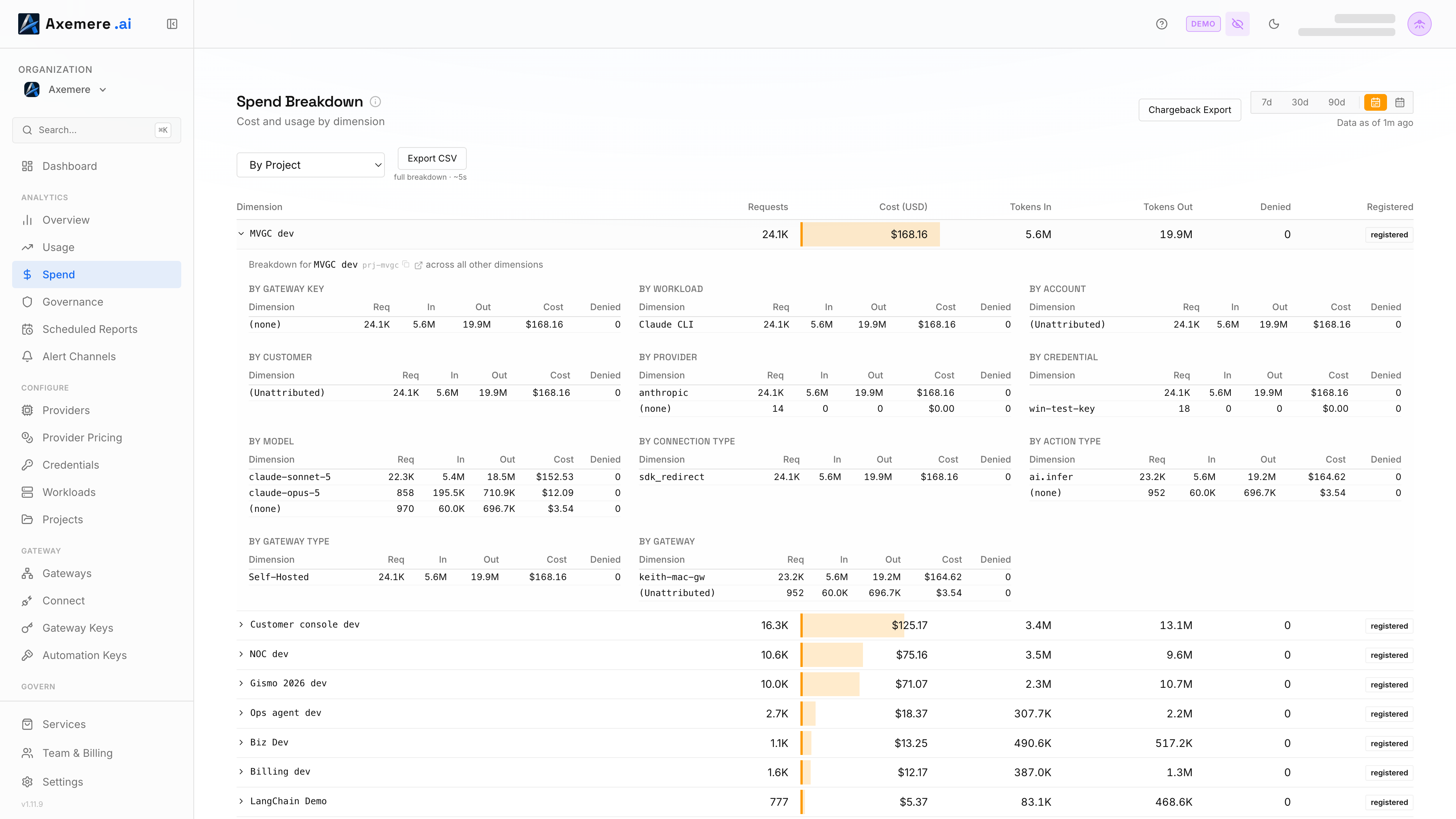
Groups rows by Project ID; see Projects. Click a row to expand its full breakdown across every other dimension.
By Credential
Groups rows by provider credential name. Select Credential from the dimension dropdown above the table.
By Gateway Key
Groups rows by the Axemere gateway key used to authenticate the request; see Gateway Keys. Select Gateway Key from the dimension dropdown above the table.
By Account
Groups rows by account identifier from request attribution headers. Requires Advanced Analytics. Select Account from the dimension dropdown above the table.
By Customer
Groups rows by customer identifier from request attribution headers. Requires Advanced Analytics. Select Customer from the dimension dropdown above the table.
By Connection Type
Groups rows by how the request reached the gateway: Direct API, SDK Redirect, or System Proxy. Select Connection Type from the dimension dropdown above the table.
By Action Type
Groups rows by request kind: ai.infer (model inference) or http.request (passthrough traffic). Select Action Type from the dimension dropdown above the table.
By Gateway Type
Groups rows by deployment type: split between Self-hosted and Managed gateway.
By Gateway
Groups rows by individual gateway node handling requests, with location.
Custom Labels
Arbitrary key-value labels set on workloads and credentials (e.g. env, team). Select a label key to see its value distribution for the period, sourced from workload and credential config.
If a request has no value for the selected dimension, it's grouped under an Unattributed or blank row rather than being dropped from the totals.
Registered vs. Ad-Hoc Dimensions
Project and Workload are backed by config: rows for values without a matching config entry show a Register link inline instead of a status badge, and link out to their respective configuration page (Projects / Workloads).
Account and Customer have no configuration entity behind them at all: every value that shows up in request attribution headers appears automatically, with no registration step. This makes them well suited to high-cardinality, externally-defined identifiers (departments, end customers) that you don't want to manage as gateway config.
Model, Connector, Gateway Type, and Gateway aren't attribution labels; they're derived directly from request metadata, so there's no registration concept for them either.
How Attribution Gets on Requests
Project, Account, and Customer labels are set by the calling application, not by the console. If you see a large Unattributed row on those dimensions, it usually means requests are flowing without those labels attached.
To add attribution to your requests:
- Explicit mode — include
attribution.project_id,attribution.customer_id, etc. in the request body - Transparent proxy — encode labels in the proxy base URL path (
/w/workload-id/p/project-id) or injectX-MVGC-*headers - Workload defaults — set
default_attributionon a workload definition so every request from that workload automatically carries the right labels
Workload, Model, Connector, Gateway Type, and Gateway don't need this setup; they're always populated from the request itself and its routing.
See Identity and Attribution for the complete configuration reference.
Downloading Data
Click Export CSV above the table to export the current breakdown as a CSV file for whichever dimension is currently selected. The file name includes the dimension name and date range.
A separate Chargeback Export button is available to download a billing-ready breakdown suitable for internal cost allocation.
Period Selection
Use the period selector to change the time window (7d, 30d, 90d, billing period). Your selection is shared with Analytics Overview and persisted across sessions.
Related: Analytics Overview | Govern → Budgets | Records | Projects | Identity & Attribution | Provider Pricing